Frequently asked questions
How to reinstate the plan availed through eStore?
To continue with the plan, a request for Reinstatement must be submitted. Please follow the steps below to apply for reinstatement of your plan:
1. Please log in to your eStore account at online.stpeter.com.ph.
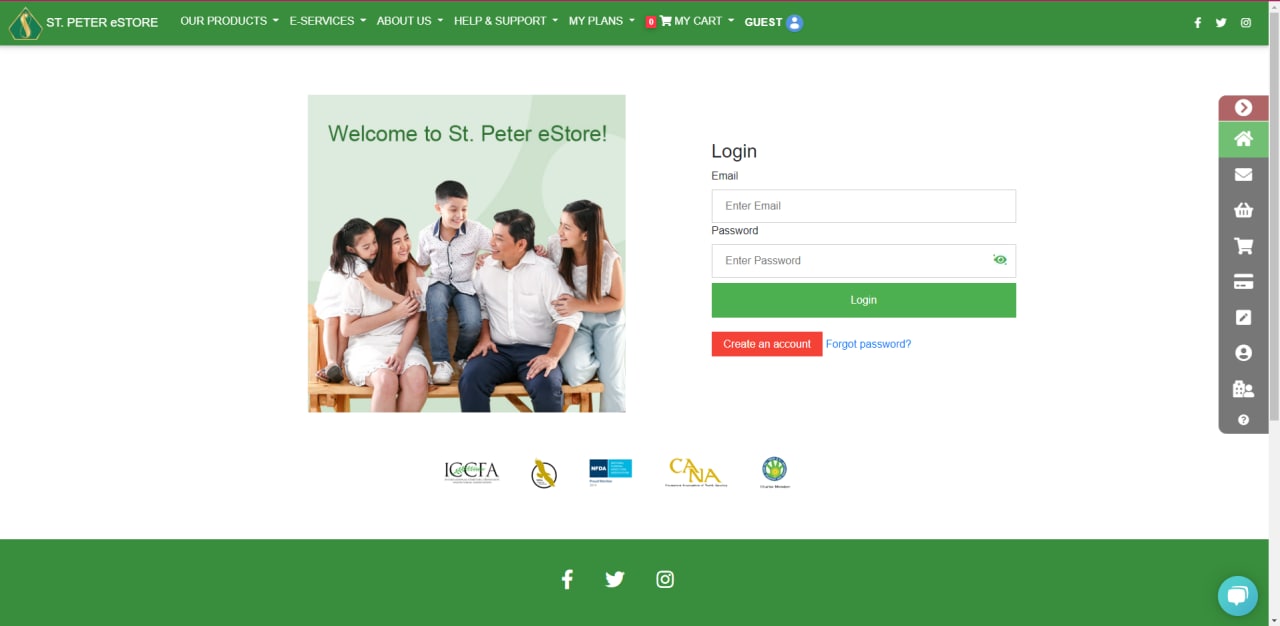 2. Then, under MANAGE MY PLAN, select REINSTATE MY PLAN.
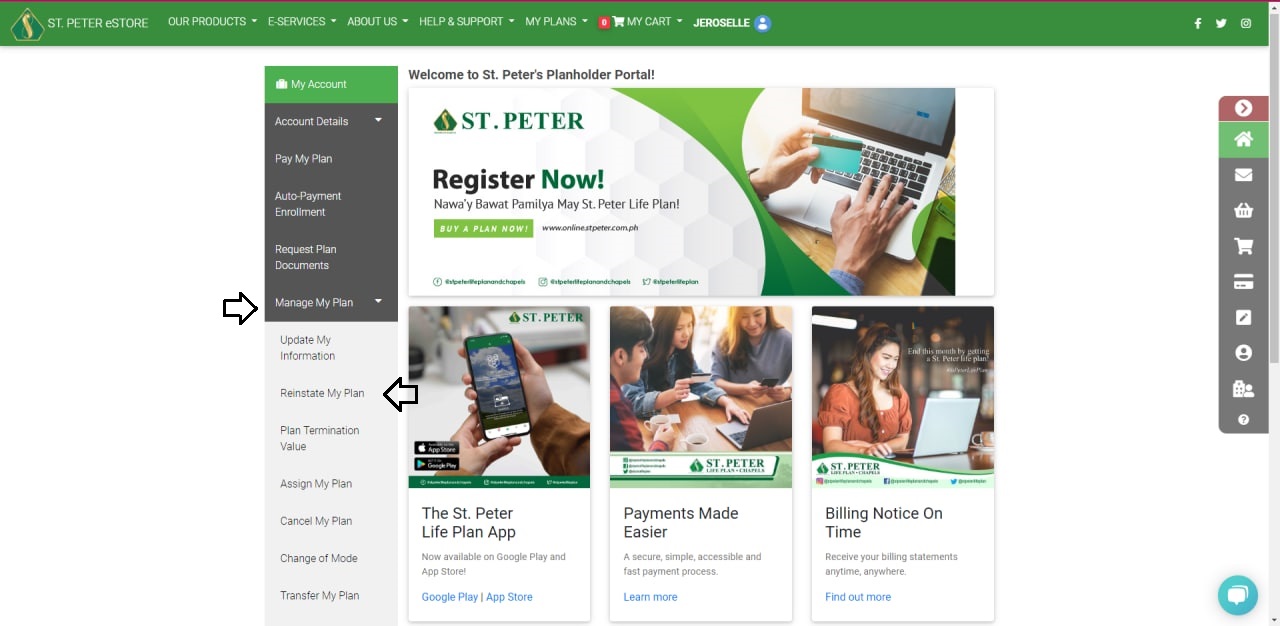 3. Click the REINSTATE button after selecting the contract number you want to reinstate.
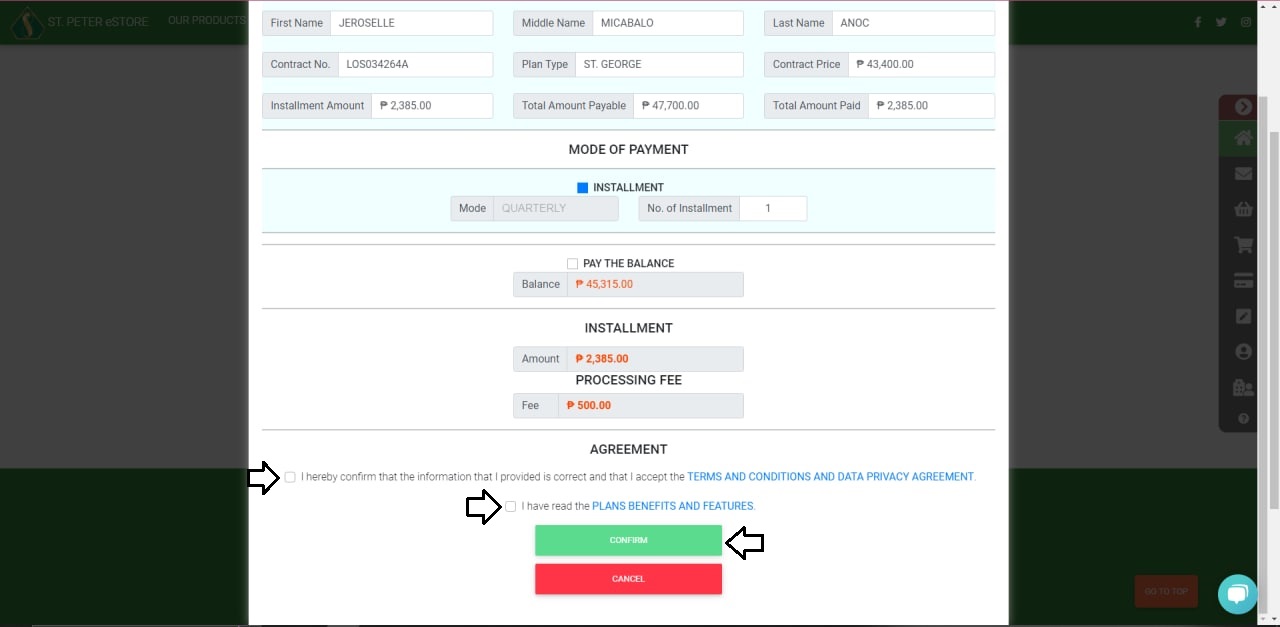
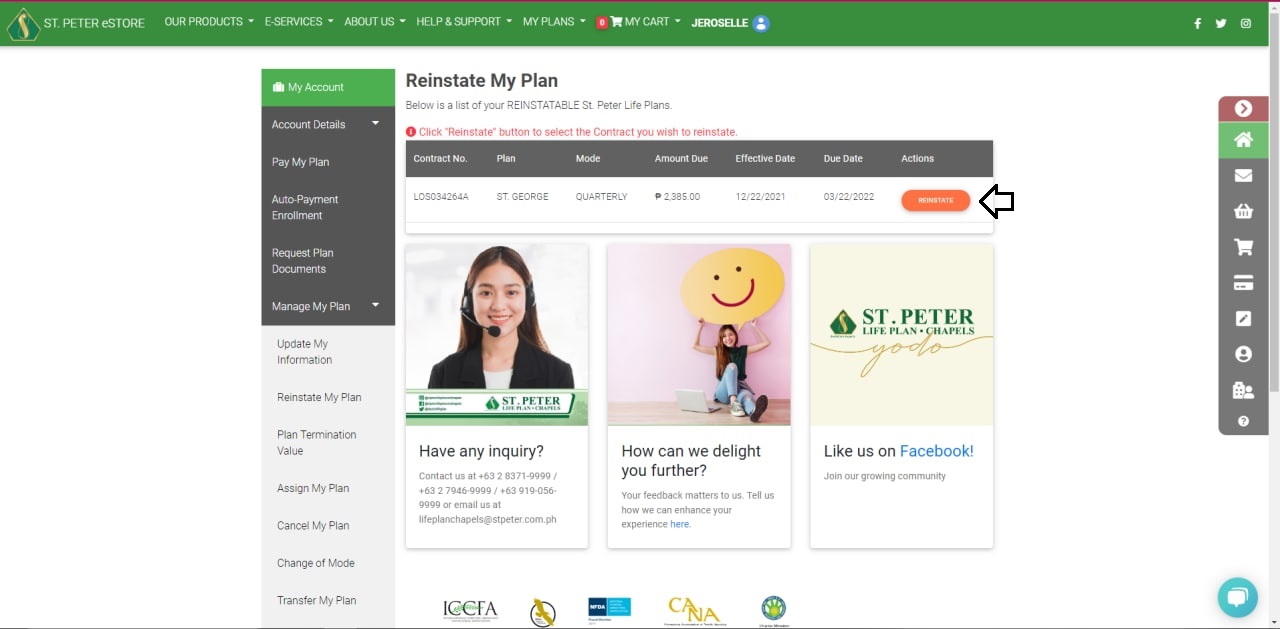 4. Review your plan's details and choose your payment method (If you want to continue your plan in installments, click INSTALLMENT, or if you're going to pay the balance, click PAY THE BALANCE.)
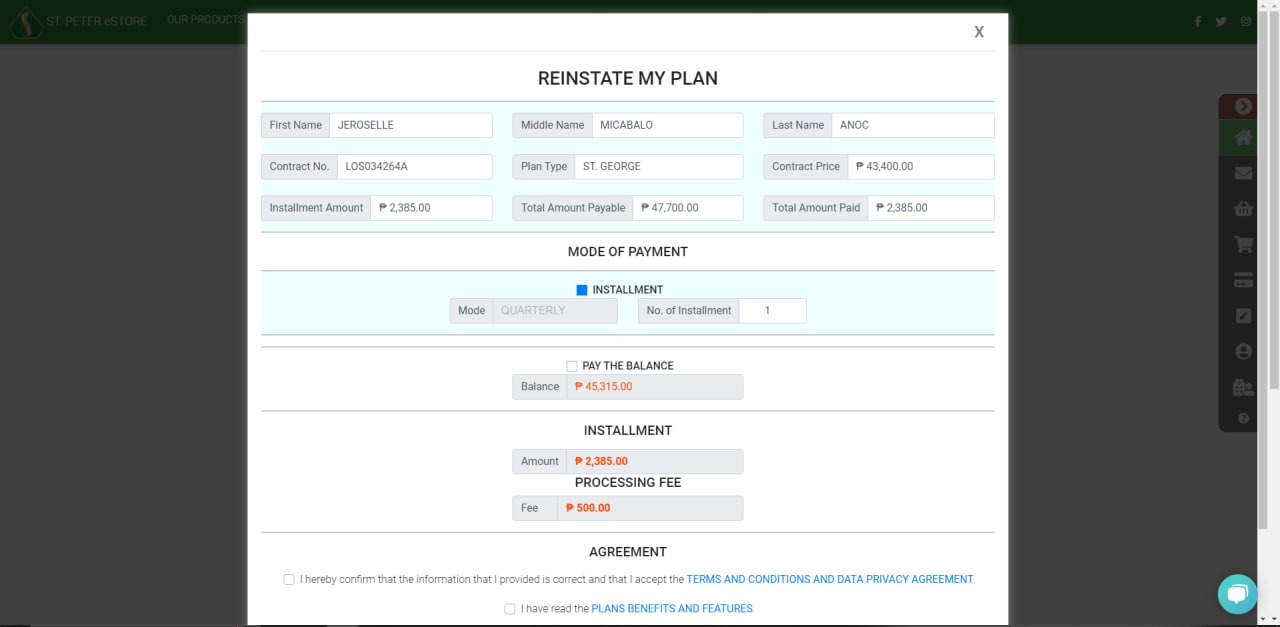 5. Check the boxes next to Terms and Conditions, Data Privacy Agreement, Plan Benefits, and Features, and then click CONFIRM.
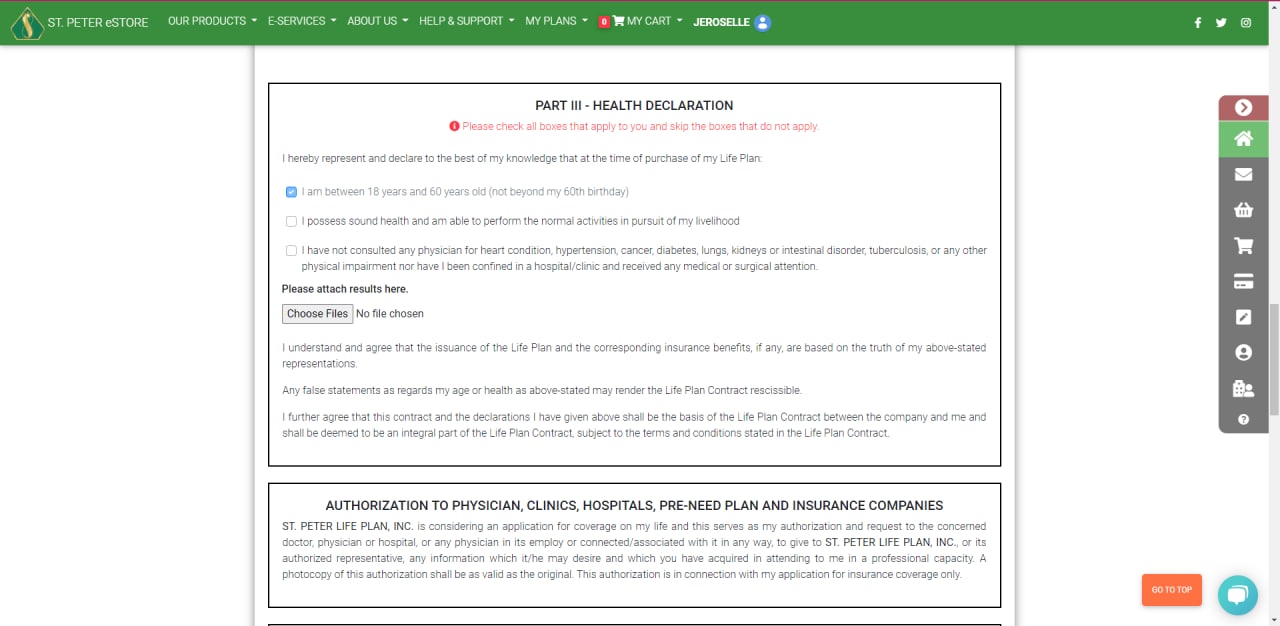
 6. You'll be redirected to the Life Plan Application page, where you can review the planholder's information. Please check the boxes that correspond to your health condition in the HEALTH DECLARATION section.
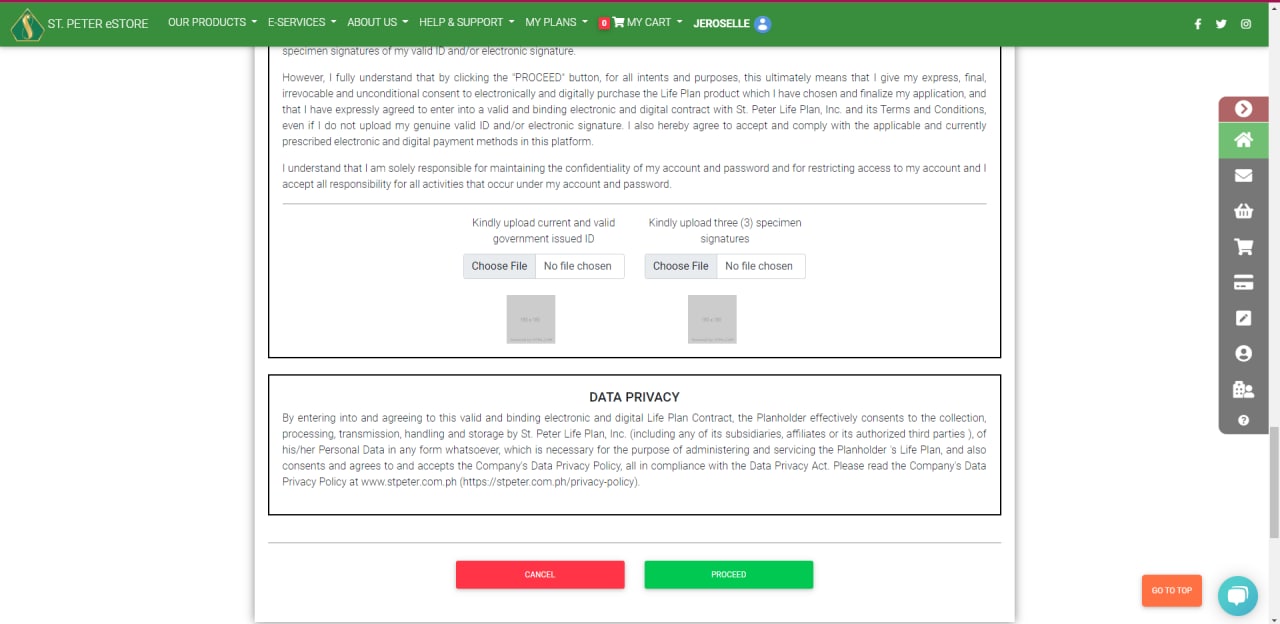
 7. On the ONLINE PURCHASE AUTHENTICATION section, please submit a copy of your Valid ID and three specimen signatures, then click PROCEED.
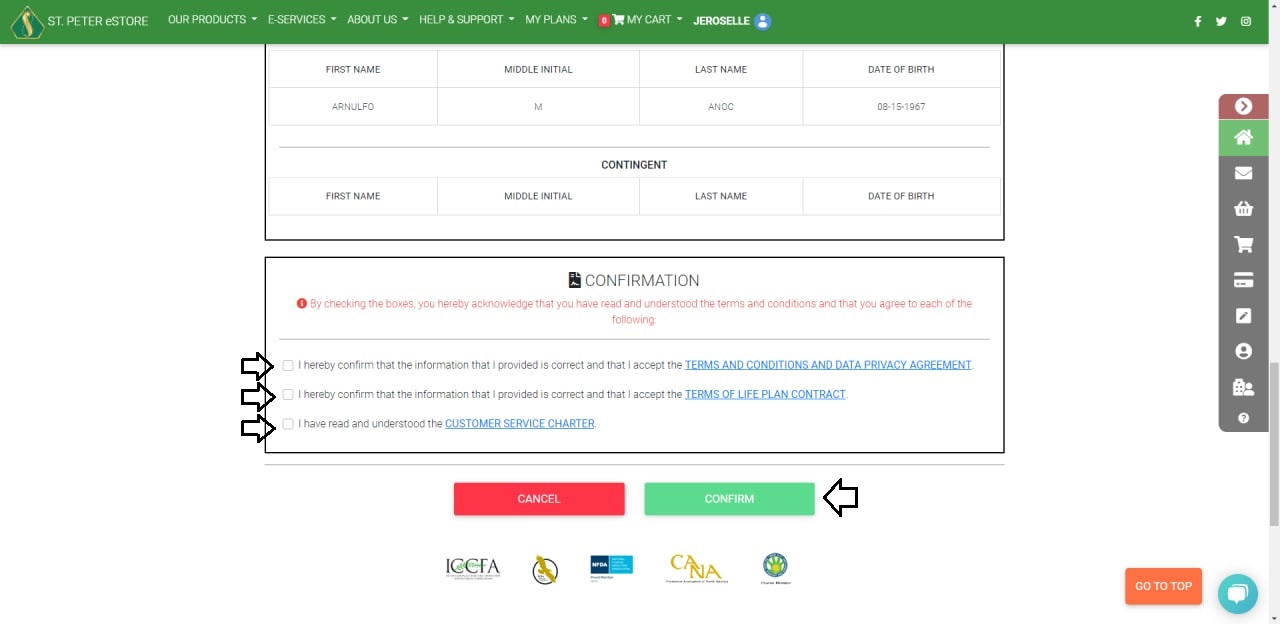
 8. Please double-check your information and click the three boxes in the CONFIRMATION section before clicking CONFIRM.
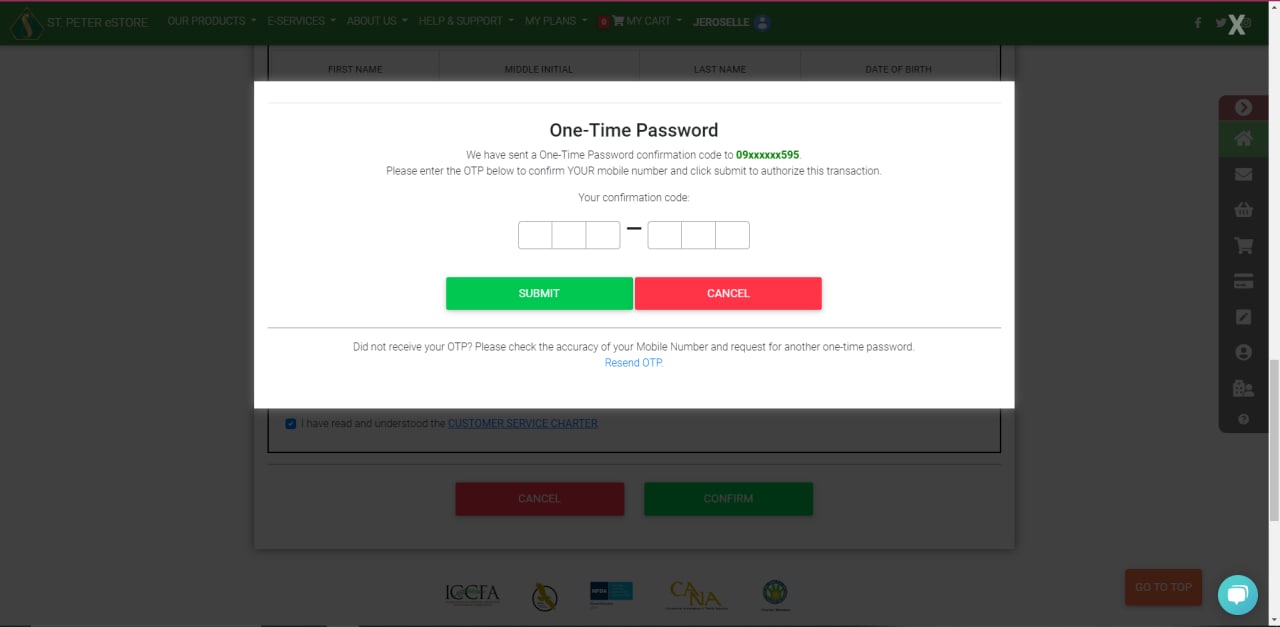
 9. Fill in the 6-digit One-Time Password that was sent to your registered cellphone number.
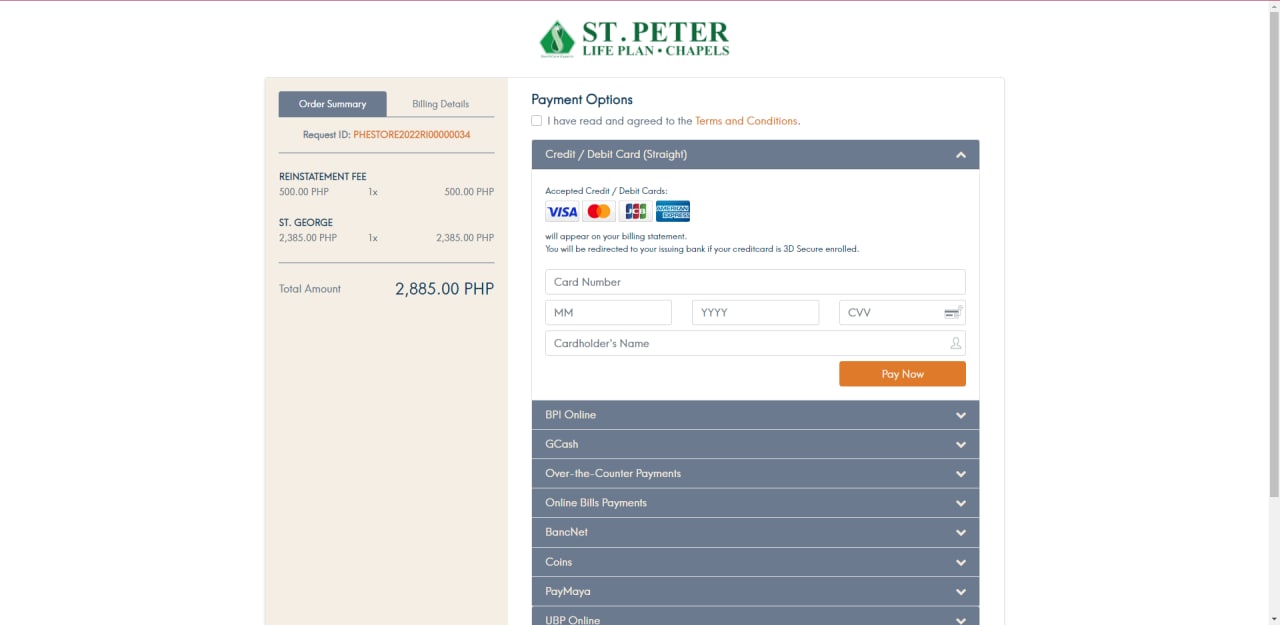
 10. You'll be redirected to the Payment page. You can pay with a credit card, debit card, online banking, e-wallets, or non-bank over-the-counter options such as 7-11 and MLhuiller.
 You may also check the status of your plan on the Account Summary page, as well as your e-mail address for a Welcome Letter confirming your plan's reinstatement.
2. Then, under MANAGE MY PLAN, select REINSTATE MY PLAN.
3. Click the REINSTATE button after selecting the contract number you want to reinstate.
4. Review your plan's details and choose your payment method (If you want to continue your plan in installments, click INSTALLMENT, or if you're going to pay the balance, click PAY THE BALANCE.)
5. Check the boxes next to Terms and Conditions, Data Privacy Agreement, Plan Benefits, and Features, and then click CONFIRM.
6. You'll be redirected to the Life Plan Application page, where you can review the planholder's information. Please check the boxes that correspond to your health condition in the HEALTH DECLARATION section.
7. On the ONLINE PURCHASE AUTHENTICATION section, please submit a copy of your Valid ID and three specimen signatures, then click PROCEED.
8. Please double-check your information and click the three boxes in the CONFIRMATION section before clicking CONFIRM.
9. Fill in the 6-digit One-Time Password that was sent to your registered cellphone number.
10. You'll be redirected to the Payment page. You can pay with a credit card, debit card, online banking, e-wallets, or non-bank over-the-counter options such as 7-11 and MLhuiller.
You may also check the status of your plan on the Account Summary page, as well as your e-mail address for a Welcome Letter confirming your plan's reinstatement.


